Git Gud
About 2 weeks ago, the lecturer of CSC14003 (Fundamentals of AI) gave us a choice to learn courses from Udemy, Coursera, or any other online learning platform to get that juicy extra credit chef kiss. Coincidentally, I have a Git course from Udemy that I got for free a while back, and Git is something that I’ve been wanting to learn more about. Killing two birds with one stone type of situation, I guess. Ofc, a proof of some sort is required to get the credit and writing a blog post is one of the options. So here I am, writing this blog post to get that extra credit. Without further ado, let’s get started.
What is Git?
Git is a distributed version control system that is used to track changes in source code during software development. It is designed to handle everything from small to very large projects with speed and efficiency.
Section 2: Git Basics: First steps
File states in Git
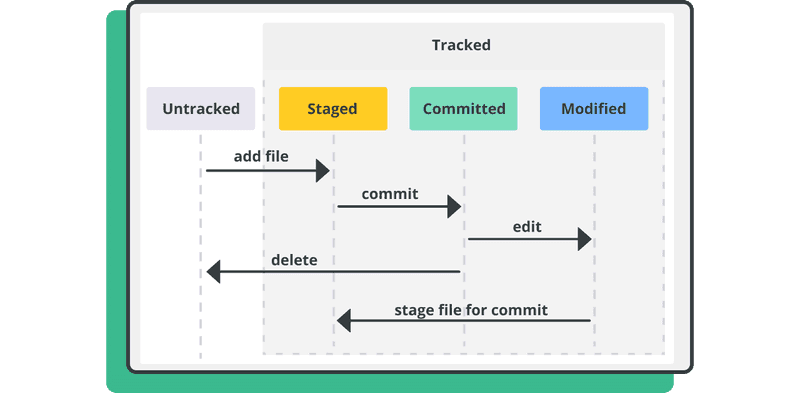
There are 3 states that a tracked file can be in Git:
- Staged: The file has been marked for inclusion in the next commit.
- Committed: The file which were staged have been committed to the Git repository.
- Modified: The file has been modified since the last commit but has not been staged.
Git commands
git init: Initialize a new Git repository.git add <filename>: Add a file to the staging area.git commit -m <message>: Commit changes to the repository.git status: Show the working tree status.git log: Show the commit logs.git rm --cached <filename>: Remove a file from the staging area but keep it in the working directory.git commit --amend: Modify the last commit (potentially dangerous if the commit has been pushed to a remote repository).
What is gitignore?
.gitignore file is used to specify files and directories that should be ignored by Git. It is useful when you have files that you don’t want to commit to the repository.
Section 3: Remote Repo: Github
Git commands
git remote: List all remote repositories.git remote add origin <url>: Add a remote repository.git push <remote repo's name> <branch>: Push changes to a designated branch in a remote repository.
Section 5: Branch Management and Pull Requests
Git commands
git branch: List all branches.git branch -d <branch_name>: Delete a branch.git checkout -b <branch_name>: Create a new branch and switch to it.
What is a pull request?
A pull request is a feature that allows you to notify other developers about changes that you’ve pushed to a repository. It allows them to review the changes and discuss potential modifications before the changes are merged into the repository.
Section 6: Merge Conflicts
What is a merge conflict?
A merge conflict occurs when two branches have changed the same part of the same file, and then those branches are merged together. Git cannot automatically determine which changes to keep, so it requires human intervention to resolve the conflict.
How to resolve a merge conflict?
There are 2 ways to resolve a merge conflict:
- Manual resolution: You can manually edit the conflicting files to resolve the conflict by
git pull, modify the conflicting files, and thengit addandgit committhe changes. - WIP
Section 7: Git History Management
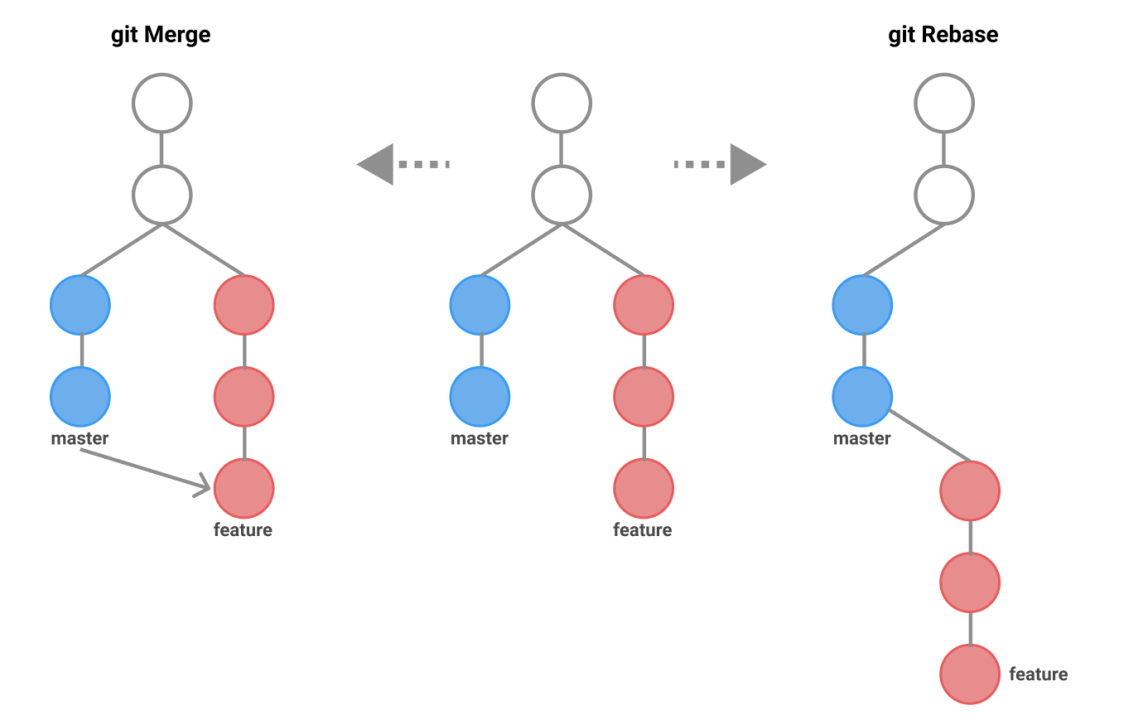
git rebase vs git pull --rebase
git rebase: move or “replay” local commits on top of another base commit. Instead of merging branches, it rewrites the commit history to make it appear as if changes were made after the updates from the remote branch.git pull --rebase: fetch the changes from the remote repository and rebase the current branch on top of the fetched changes. However, when using rebase-related commands, it is important to note that it rewrites the commit history, which can cause problems when trying to push the changes to a remote repository.
git push -f vs git push --force-with-lease vs git push
git push -f: force push the changes to the remote repository. It will overwrite the remote branch with the local branch. (not recommended)git push --force-with-lease: force push the changes to the remote repository, but it will only succeed if the base commit in remote repo where my commit diverted from is not changed. It is a safer alternative togit push -f.git push: push the changes to the remote repository. It will fail if the remote branch has changes that are not in the local branch (different commit history).
git rebase -i <commit_checksum>
Interactive rebase allows you to modify the commit history by squashing, reordering, or editing commits before pushing them to the remote repository. (In my humble opinion, this is really handy).
git reset <commit_checksum>
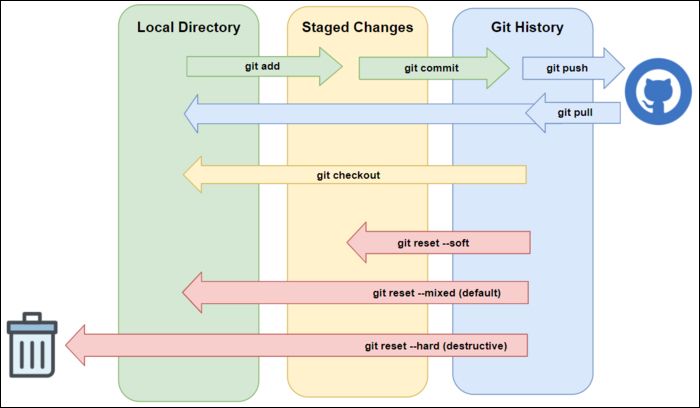
git resetis used to reset the current HEAD to the specified state. It can be used to undo changes, unstage files, or move the HEAD to a different commit. However,git revertis a safer alternative to git reset because it creates a new commit that undoes the changes made in the specified commit, whilegit resetmodifies the commit history.- Apparently
git resetusually goes hand in hand withgit push --force-with-leaseto update the remote repository with the changes.
Section 8: Git Stash
What is git stash?
git stash is a command that allows you to save changes that are not ready to be committed yet. It is useful when you need to switch branches or work on a different task without committing the changes.
For now, I think git branch is more than enough for me to manage my work. I’ll come back to this section when I need to use git stash.
Section 9: Restoring Lost Snapshots
What is git reflog?
git reflog is a reference log that records changes to the HEAD of the repository. It is useful for recovering lost commits or branches that have been deleted.
How to recover lost commits?
git reflogto find the commit checksum (or git log -g for a more detailed view). Filter options can be found on the internet.git checkout <new branch name> <commit checksum>to recover the lost commit to a new branch. Orgit reset --hard <commit-hash>to recover the lost commit to the current branch (Warning: this will overwrite the current branch), orgit cherry-pick <commit-hash>???
Section 10: Moving Commits Between Branches
What is git cherry-pick?
git cherry-pick is a command that allows you to copy a commit from one branch and apply it to another branch. It is useful when you want to move a specific commit to another branch without merging the entire branch. For example, if the backend team has made a commit that you want to apply to the frontend branch, you can use git cherry-pick to copy the commit to the frontend branch.
How to use git cherry-pick?
git checkout <branch_name>to switch to the branch where you want to apply the commit.git cherry-pick <commit_hash>to copy the commit to the current branch.- If there are conflicts, resolve them manually, run
git add <file_with_conflicts>and thengit cherry-pick --continueto continue the cherry-pick process.
Section 11: Cloning Existing Repository
git clone